
Recent changes to My Pension
We updated My Pension on 13 May 2026 to give you an improved experience. If you’re already registered and haven’t logged in to your account since then, you’ll be asked to re-enter your details to access your account.
Tell us about your experience of using My Pension by completing our survey.
Creating an account and logging in
Why do I need to create a new account?
In May 2026 we launched a new version of My Pension to give you a smoother, clearer, and more secure experience. The updated design makes it easier to navigate, quicker to use, and more intuitive to find information or complete tasks. We’ve also introduced enhanced safety features, including two‑factor authentication, to ensure personal data and account access is more protected than ever.
As part of these improvements, we’re asking you to confirm your details by creating a new account meaning you can continue to manage your pension easily through your online My Pension account.
How do I create an account for My Pension?
To create your account on My Pension go to mypension.gmpf.org.uk and follow the instructions.
You’ll first need to agree to the use of personal data, then confirm your surname, date of birth and National Insurance number.
If we hold an email address for you, you’ll then be asked to confirm your email. You’ll then be sent an email containing a link to complete the registration process.
If we do not hold an email address, you’re unable to confirm your email address, or you do not want to use the email address we hold for you, you’ll need to create your account by using electronic identity verification.
Alternatively, you can also request an activation code.
What is electronic identity verification, and how do I use it?
Electronic identity verification (or facial recognition) is a secure system used to confirm your identity as part of the My Pension registration process. You’ll only be asked to use it if we do not hold a valid email address on record for you or you want to use a different email address from the one we hold. Once you have registered, you will not need to do this again.
To use electronic identity verification, you’ll need a mobile phone or tablet with a camera, and a driving license or passport. The evidence must be in date.
If you’re trying to register on a laptop or desktop computer, you’ll be asked to use your phone or tablet camera to scan a QR code. Once this has been scanned, a new identity verification page will automatically appear.
If you’re trying to register on a mobile or tablet device, you’ll see the ‘start verification’ button on screen. Select this to open the identity verification page.
Ensure the settings on your device will allow the app to access your camera.
Follow the instructions on screen by taking a photo of your evidence, and then a photograph of yourself.
Once completed, return to My Pension and select ‘continue verification’. You’ll then be asked to set up your password and complete the registration process.
I cannot register using electronic identity verification
If you cannot use electronic verification, you can instead request an activation key to be sent to your home address. To proceed with this option, select the ‘request an activation code in the post’ button at the bottom of the ‘Confirm your identity’ screen. Then, follow the instructions to request an activation code in the post.
Once you receive your activation code go to My Pension and select ‘Create an account’. Tick the box to confirm you understand the website uses your personal data and then select ‘I have an activation code’. You’ll then need to confirm your surname, date of birth, and National Insurance number, and enter the activation code in your letter.
You’ll then be asked to set up your password and complete the registration process.
How do I set up two-factor authentication?
To protect your details, our My Pension portal has two-factor authentication.
A new ‘Set up SMS verification screen’ will appear when you first create your account.
When prompted, add your mobile number to the ‘add your mobile phone number’ box and click ‘Send text message’. You should receive a text message within a couple of minutes.
The text message will provide you with a 6-digit code which you’ll need to enter in the ‘Enter the unique 6-digit code you received’ box when prompted.
Finally click log in, you’ll then be taken straight to your My Pension homepage. Going forward when you log in, you’ll be asked to provide a 6-digit code that will be sent via text message to your mobile phone.
If you live overseas, an error may appear when entering your mobile number. This can depend on your location and if you use an international phone number. Please try submitting your number with and without your country’s dialling code, the leading zero, and the plus sign (+).
For a small number of overseas users, you may not be able to receive the verification text messages. If this is the case, please contact our Customer Services team who will be able to help you register.
If you are having any issues with setting up your two-factor authentication, please call our Customer Services team on 0161 301 7000.
Can I create an account on behalf of my child?
If you’re a parent or guardian of a child under 18, you can create a My Pension account to access details of your child’s pension.
We’ll write to you shortly before your child reaches 18 to let you know that we’ll be deactivating your online account. If their pension is due to continue beyond age 18, your child must then create their own My Pension account. We’ll also send you some forms for your child to complete and return to us if they’re continuing in education or training. We’ll then contact your child directly.
How do I log in to My Pension?
If it’s your first time using My Pension since our upgrade then you’ll need to create an account first, even if you already had one.
To log in, simply enter your email address and password, then click ‘Submit’.
To protect your details, our My Pension portal has two-factor authentication, which you set up when creating your account.
A text message will automatically be sent to your mobile number providing you with a 6-digit code. You’ll need to enter the code in the box that appears on your screen and click log in.
If you did not receive the text message, simply click ‘Resend’. If you still have not received a text message, please contact our Customer Services team.
Troubleshooting
I have not received my ‘You need to finish creating your My Pension account’ email
We’ll send a link to the email address you’ve confirmed on screen. It should not take long to arrive, so please check your spam/junk folder if it does not appear in your inbox.
If you’ve still not received your email, please contact our Customer Services team on 0161 301 7000.
I have not received my activation code
We’ll send the activation code by letter to your home address, which will be posted first class on the next working day.
Your partial postcode is displayed on screen when you request the code. If this is not correct, please do not select ‘Send code’, and contact our Customer Services team instead.
Please do not request an additional activation code after your first request, as this will invalidate your first activation code. If you’ve not received your activation code after 10 days, please contact our Customer Services team on 0161 301 7000.
I am receiving an error message when trying to log in
Here are some of the reasons why you may be receiving an error message.
- Check you have input the correct email address, password and 6-digit two-factor authentication code.
Your password must contain a minimum of 8 characters, with a least 1 uppercase and lowercase letter and 1 number and 1 special character.
- Have you used auto fill?
If you auto filled the details, try typing them in instead. Auto fill can sometimes add extra spaces.
- Has the member died?
You’ll be unable to access the My Pension account of a member who has died.
I have forgotten my password
You can reset your password by clicking on the ‘Forgotten your password?’ link. You need to enter the email address linked to your My Pension account. We’ll then send you a reset code by email which you'll need to enter in My Pension. Therefore, you need to keep My Pension open in your browser. The reset code is valid for 24 hours. You should check your junk or spam folder if you cannot find it in your inbox.
To complete your password reset, go back to My Pension, and select ‘Continue’. You'll then be prompted to enter your new password and the reset code.
If you do not manage to reset your password within 24 hours of receiving the code, you’ll need to follow the same process to request another code.
Your password must contain a minimum of 8 characters, with a least 1 uppercase and lowercase letter, 1 number and 1 special character.
Using My Pension FAQs
Updating your details
How do I change my email address?
Log in to your My Pension account and visit the 'Your personal details' section under ‘Personal and employment details’ to amend your email address. Here you’ll have the option to change your email address for both your contact email and your My Pension login. A confirmation email will be sent to your new email address. We recommend that you use the same email address for both your contact email and your My Pension login email. Always use a personal email address and not a work email, this will ensure that you’re kept up to date at all times.
If you do not have access to your old email account, please contact our Customer Services team.
How do I update my address?
If you’re currently contributing to your pension, please update your address with your employer as soon as possible as they send us your details each month, with your contributions.
Log in to your My Pension account and visit the 'Your personal details' section under ‘Personal and employment details’ to amend your address. First, you’ll need to select ‘Edit contact details’ and then select the correct country.
If you live in the United Kingdom and your postcode can not be identified with postcode look up, for example, if your house is a new build, please contact our Customer Services team to update your address.
How do I view or update my lump sum expression of wish?
The ‘Manage your death grant nomination’ section on your My Pension homepage will allow you to view, update or add nominations.
If you’ve previously nominated anyone they’ll be displayed under ‘Your nominees’. Here you’ll also be able make any amendments.
To update or add any new nominees, follow the instructions, making sure you select the correct relationship from the drop-down list for example child, spouse or civil partner or other which includes a cohabiting partner.
If you’re making multiple nominations, make sure the percentage split adds up to exactly 100 per cent. For example, if you’re splitting it equally between three people, one will need to be slightly more than the others to equal 100 (for example, 33.33, 33.33, and 33.34), otherwise you will not be able to submit your nominees as it will error.
You can read more about how lump sum death grants work on our webpage ‘What death benefits we pay’.
How do I change my bank details?
Please send any bank account detail changes to us as soon as possible before your next pension payment.
Log in to your My Pension account as normal and visit the ‘Bank details’ section under ‘Personal and employment details’ to amend your bank account details. Click on ‘Edit bank details’ and follow the instructions.
We’ll email you to confirm that we’ve received your request.
If you’re receiving more than one pension, you can have them paid in to different accounts. Any approved bank account changes will be applied to all pensions currently in payment. If you would like your pensions to be paid into different bank accounts, please contact our Customer Services team, who will be happy to help. You can call them on 0161 301 7100.
We’ll need to run checks on your new bank account details to confirm they are valid. If we have any queries, we’ll be in touch.
Once our checks are completed, we’ll send you confirmation within 5 working days to confirm that your bank details have been updated.
If we updated them at least 2 weeks before your next payday, we’ll pay your next pension payment into your new account. If we updated them less than 2 weeks before payday, we may still pay your next pension payment into your previous account.
Please be aware that My Pension only shows the bank account details for one pension record. If you’ve asked for your pensions to be paid into different bank accounts and need more information about where each payment goes, please contact our Customer Services team on 0161 301 7100.
How do I change my bank details to a non-UK bank?
If you’re changing your bank to a non-UK bank you’ll need to complete a bank mandate form. To request a bank mandate form for the correct country, please contact our Customer Services team. Visit our ‘Tell us you have move abroad’ webpage for more information about having your pension paid into a non-UK bank.
Navigating My Pension
How do I navigate between multiple pension accounts?
Log in to My Pension to view all your pension accounts in one secure online portal.
Certain pages will allow you to navigate between your pension accounts. This can be done when an ‘Employment’ drop down is present.

How do I find my documents?
Go to ‘Documents sent to me’ within the ‘Documents and uploads’ section. Here you’ll find your annual benefit statements if you are a contributing member or have benefits on hold.
We’ll also add letters here, for example, when you first join GMPF or when you retire.
We’ll notify you by email when we add new documents to your account.
How do I view and download my P60 or payslip?
If you are receiving a pension from us, you can view your P60 End of Year certificates, or payslips by going to the ‘Payslips and P60s’ section on your My Pension homepage.
The screen will automatically show your payslips for the current tax year. You can change the tax year by going to the ‘Tax year’ dropdown and selecting a different option.
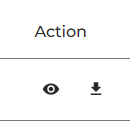
To view a summary of each payslip you’ll need to click on the eye icon. Once displayed you’ll then have the option to ‘Download a copy’ which you can print.
To view your P60s select ‘P60s’ instead of ‘Payslips’ and a list of your P60s will appear on the screen.
To view a summary of each P60 you’ll need to click on the eye icon. Once displayed you’ll then have the option to ‘Download a copy’ which you can print. Alternatively, you can download a copy straight away by clicking the ‘Download icon’.
If you have multiple pension accounts, you’ll be able to use the ‘Pension number’ drop-down to view the P60s and payslips for each pension account.
You’ll receive an email each year when your P60 is available, which is always around the time of your April pay date. We will not email you when a new payslip is added to your My Pension account, but these are available each month.
How do I complete a pdf form and upload documents?
If you’ve been asked to complete a form, you’ll also need a pdf reader available. We recommend using Adobe Acrobat.
Log in to My Pension and go to the Documents and uploads section of My Pension. Here there are three areas:
- Fund documents and forms. This is where we have a library of forms available. If you need to complete any of these forms you will have been asked to do so by either letter or email. You can download and complete these forms ready to upload.
- Documents sent to me. This is where letters we have sent to you will be available to read. This may also include notes for guidance and forms for you to complete.
- My uploads. This is where you can securely upload documents for GMPF. This includes forms, certificates, or any other information we may have requested.
If you have been asked to complete a form and upload it, this will either have been uploaded along with your letter in ‘Documents sent to me’ or it’ll be in ‘Fund documents and forms’. Your letter should tell you where the form is.
Follow the steps below:
- Download and save the form to your device.
- Complete the form. (Some forms include validation buttons. Click to check that all required information has been completed.)
- Save the completed form on your device.
- Log in to your My Pension account. Go to ‘My uploads’ and click on ‘Upload documents’.
- Choose the documents you want to upload by either dragging and dropping the documents in to the box or by clicking ‘Browse documents’. Once selected the documents will appear in the queue with the status ‘Ready to upload’.
- Check you’ve selected the correct documents. To remove a document, click on the bin icon. To add more documents, repeat step 5. When ready, click ‘Start uploading’.
- The status will then change to ‘Uploading’. When complete, the status will change to ‘Uploaded’ and a message will appear to say, ‘You have successfully uploaded files’.
How accurate are the figures?
The figures in your annual benefits statements and on the pension calculators in My Pension are based on your actual pay details and will be accurate in most cases. However, there are some circumstances where this is not the case, and we’ll need to adjust the figures at retirement. For example, the pension calculator will not include any additional pension you might be buying as part of an additional pension contributions contract. As such, please use the figures for illustrative purposes only.
We recommend speaking to your employer or calling our Customer Services team and asking for confirmation of your actual benefits before deciding to claim your pension. If you are currently paying in to your GMPF pension, you can visit our ‘When and how can you retire from employment’ webpage for more information. If your pension benefits are currently on hold, you can visit our ‘When and how can you access your benefits on hold’ webpage for more information.
Retiring online
How do I retire using My Pension?
If you are currently paying in to your pension, you first need to speak to your employer about retiring. They’ll then let us know, and we’ll contact you to tell you what you need to do next.
If your pension is currently on hold, you can retire online by going to the ‘Benefits on hold retirement’ calculator which is in the ‘Benefit calculators’ section of My Pension. Read through the information on the screen and follow the instructions to select your payment date and lump sum conversion choices. Once you’ve completed all sections within the calculator you’ll need to select ‘Begin your payment request’ as shown below.
Check your personal details are correct and click ‘Confirm and submit’.
You can only submit a request if your payment date is the date that you turn 55 or later.
Once you have submitted your request, we’ll send you an email to confirm we have received it. We’ll contact you within 5 days once we have carried out some further checks to let you know what happens next.
If you’re an elected member, please contact our Customer Services team instead.
How do I complete tasks?
You will receive an email letting you know you have tasks to complete. The email will ask you to log in to My Pension where a pop up toolbar will be presented. You can also see if you have any outstanding tasks by going to ‘Menu’ and then ‘My tasks’.
Each task will direct you on what needs to be completed. Once you have completed all tasks, we’ll be in touch.